Cloudflare is one of the most powerful Content Delivery Networks (CDNs) and reverse-proxy firewalls in the world. When configured correctly for WordPress, it can slash your Time to First Byte (TTFB), offload over 85% of origin server requests, neutralize malicious automated bot scans, and deliver sub-second global page loads. In this comprehensive engineering guide, we break down the definitive Cloudflare setup for high-traffic WordPress websites.
1. Choose Full (Strict) SSL/TLS Encryption
One of the most frequent misconfigurations website owners make is selecting Cloudflare SSL in Flexible mode. In Flexible mode, communication between Cloudflare and your origin server occurs over unencrypted HTTP (port 80). If your WordPress configuration or .htaccess forces HTTPS, this creates an infinite redirect loop (ERR_TOO_MANY_REDIRECTS).
Always enforce the following SSL/TLS configuration:
- SSL/TLS Encryption Mode: Set to Full (Strict). Ensure an active, valid SSL certificate exists on your origin server (such as Let’s Encrypt or a free 15-year Cloudflare Origin CA certificate).
- Always Use HTTPS: Enable under SSL/TLS > Edge Certificates. This automatically redirects all incoming HTTP port 80 requests to secure HTTPS port 443 at Cloudflare’s edge.
- Minimum TLS Version: Set to TLS 1.2 or TLS 1.3 to block outdated, vulnerable cryptographic ciphers.
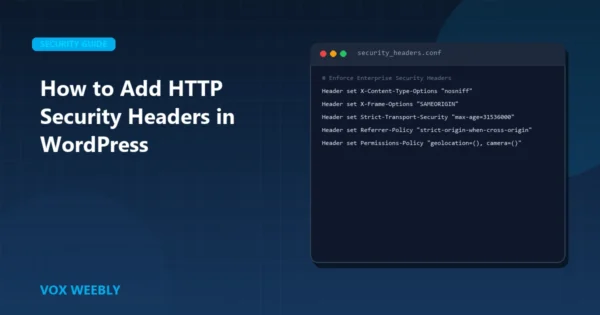
To reinforce transport security across browser sessions, implement our recommended security directives. Check out our guide on how to add HTTP security headers in WordPress to configure HSTS, CSP, and X-Content-Type-Options.
2. Configure Cloudflare Edge Cache Rules for WordPress
By default, Cloudflare proxies HTML pages dynamically and caches only static assets (CSS, JavaScript, images, web fonts). To achieve true sub-100ms global response times, you must cache complete HTML pages across Cloudflare’s 330+ global edge data centers while cleanly bypassing cache for logged-in administrators and dynamic shopping carts.
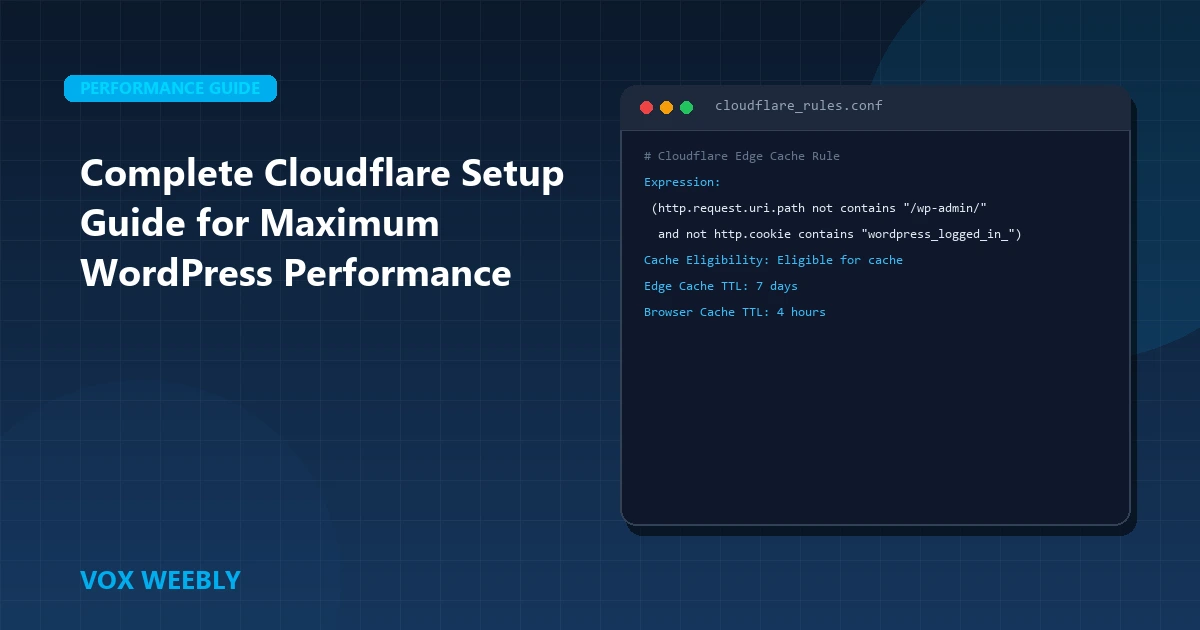
Navigate to Caching > Cache Rules and create a custom rule:
# Rule: WordPress Edge HTML Caching
Expression: (
    http.request.uri.path not contains "/wp-admin/" and
    http.request.uri.path not contains "/wp-login.php" and
    http.request.uri.path not contains "/wp-json/" and
    not http.cookie contains "wordpress_logged_in_" and
    not http.cookie contains "woocommerce_items_in_cart" and
    not http.cookie contains "comment_author_"
)
Cache Eligibility: Eligible for cache
Edge Cache TTL: 7 days
Browser Cache TTL: 4 hours
This single rule serves standard visitors directly from edge RAM while ensuring administrators, editors, and shoppers always receive live, dynamic origin responses without stale session leaks.
3. Enable HTTP/3 (QUIC) and 0-RTT Connection Resumption
Under Speed > Optimization > Protocol, activate HTTP/3. Traditional HTTP/2 relies on TCP handshakes, making it susceptible to head-of-line blocking on unstable mobile connections. HTTP/3 runs over UDP with built-in TLS 1.3 multiplexing, significantly accelerating first-load paint times on mobile devices.
Combine this edge protocol acceleration with proper image loading strategies. Read our engineering breakdown on how to disable lazy load in WordPress for above-the-fold hero images to eliminate Core Web Vitals LCP penalties.
4. Origin IP Cloaking & DNS Hardening
A reverse proxy only shields your site if your origin web server’s true IP address remains completely hidden. If attackers uncover your server’s direct IP, they can bypass Cloudflare’s WAF and DDoS defenses entirely.
Protect your origin IP with these measures:
- Orange-Cloud All Records: Ensure your root domain (
@),www, and any subdomain CNAMEs are set to Proxied (Orange Cloud) in Cloudflare DNS. - Separate Mail Hosting: Never host your mail server (MX records) on the same IP address as your WordPress web server, as outgoing email headers expose origin IPs.
- Restrict Origin Ingress via Firewall: Configure host firewall rules (UFW or iptables) to drop all port 80 and 443 traffic unless it originates strictly from Cloudflare’s published IP ranges.
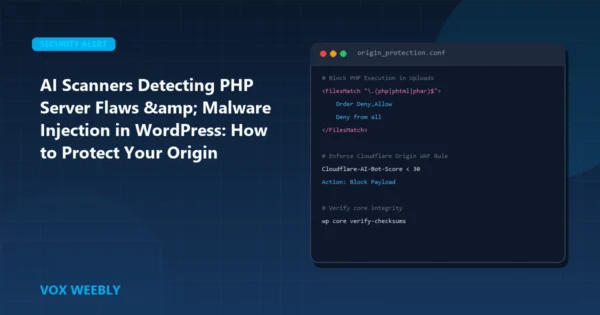
Attackers continually deploy autonomous scanners to probe web origins for unpatched vulnerabilities. For a step-by-step breakdown on origin defense, read our technical tutorial on defending WordPress origins against automated AI malware scanners.
5. Custom WAF Rules: Block Malicious Probes & XML-RPC
Cloudflare’s Web Application Firewall (WAF) can stop common WordPress attacks before they consume server resources. Create a custom WAF rule under Security > WAF > Custom Rules:
# Rule: Block XML-RPC & Sensitive Directory Probing
Expression: (
    (http.request.uri.path contains "/xmlrpc.php") or
    (http.request.uri.path contains "/wp-content/uploads/" and http.request.uri.path contains ".php") or
    (cf.bot_management.score lt 15 and http.request.uri.path contains "/wp-login.php")
)
Action: Block
Because modern WordPress sites use the REST API, xmlrpc.php is rarely needed and is primarily targeted by brute-force credential attacks and amplification amplification exploits. Blocking it at the edge eliminates tens of thousands of wasted server requests daily.
6. Offloading MySQL Starvation & Connection Spikes
When un-cached WordPress sites experience traffic spikes, hundreds of concurrent visitors trigger simultaneous MySQL database handshakes. This easily leads to database pool exhaustion.
By absorbing 90%+ of traffic at Cloudflare’s edge, database concurrency remains low and stable. If your origin ever experiences connection drops, review our diagnostic guide on how to fix database connection errors in WordPress to optimize connection pools and transient caches.
Conclusion
In conclusion, mastering complete cloudflare setup guide for maximum wordpress performance is essential for building a resilient, high-performing WordPress website. By implementing the architectural best practices and configurations covered in this guide, you ensure your platform maintains peak performance, bulletproof security, and seamless user experiences.
Continuously auditing your server configurations, monitoring error logs, and adhering to clean development standards will keep your site reliable as your business scales. Investing in high-performance hosting and modern engineering prevents costly downtime and maximizes your digital investment.
At Vox Weebly, we understand the importance of a fast, secure, and custom-engineered WordPress website, and our team of senior developers can help you build, optimize, and maintain your web platform for maximum performance. Contact us today to learn more about our custom WordPress website development services.
Frequently Asked Questions (FAQ)
Will Cloudflare Edge Caching break my WooCommerce shopping cart or checkout?
No, provided your Cache Rule includes bypass directives for the woocommerce_items_in_cart and woocommerce_cart_hash cookies. When a user adds an item to their cart, WooCommerce sets these cookies, which immediately instruct Cloudflare to bypass edge cache and fetch live origin data for that session.
What is the difference between Cloudflare APO and Custom Cache Rules?
Cloudflare Automatic Platform Optimization (APO) is a paid ($5/mo) subscription that uses a Cloudflare worker and WordPress plugin to automatically handle HTML caching and cache purges. Custom Cache Rules (demonstrated above) achieve identical sub-100ms edge HTML caching performance on Cloudflare’s free tier when paired with webhook or REST-based purge hooks.
Why am I seeing ERR_TOO_MANY_REDIRECTS after activating Cloudflare?
This occurs when Cloudflare SSL is configured to Flexible while your origin web server or WordPress URL is set to https://. Cloudflare contacts your origin over port 80 (HTTP), the origin sends a 301 redirect back to HTTPS, and Cloudflare receives the redirect, repeating the cycle infinitely. Switching Cloudflare’s encryption mode to Full (Strict) instantly resolves this.
How do I automatically purge Cloudflare cache when publishing or editing a post?
Install the official Cloudflare WordPress plugin or configure a simple post-save hook (such as save_post in functions.php) that calls Cloudflare’s Zone Purge API endpoint (POST /client/v4/zones/{zone_id}/purge_cache) for the specific post URL whenever content is updated.