Encountering the “Error Establishing a Database Connection” in WordPress can instantly bring your entire website down, displaying a blank white screen with that single dreaded message. This critical failure prevents visitors from accessing your content, halts e-commerce transactions, and risks damaging your search rankings if left unresolved. In this complete engineering walkthrough, we explore the exact diagnostic steps, terminal commands, and configuration fixes to restore your database connection immediately.
What Causes the Database Connection Error in WordPress?
WordPress relies on a relational MySQL or MariaDB database to store virtually all site assets—including posts, pages, ACF custom field schemas, user credentials, comments, and global options. When PHP attempts to initialize a database handshake and fails, execution terminates immediately.
The five most frequent root causes behind this error include:
- Mismatched Credentials in
wp-config.php: An incorrect database name, user, or password following a server migration, host backup restoration, or password reset. - MySQL/MariaDB Service Crash: Traffic surges, unindexed database queries, or server RAM exhaustion causing the database daemon to terminate unexpectedly.
- Corrupted Database Tables: Broken table indexes resulting from sudden server reboots, failed plugin uninstalls, or disk full conditions.
- Incorrect Database Host or Port: Connecting via
localhostwhen the host requires127.0.0.1, a custom port (e.g.,3306), or a Unix socket path. - Malicious Crawler Overload or Bot Assaults: Automated crawlers probing dynamic endpoints and overwhelming the database connection pool. Learn how to block these malicious probes with our guide on defending against AI automated vulnerability scanners at the edge.
Step 1: Check If the Admin Area Shows a Repair Notice
Begin by attempting to access your WordPress dashboard URL (e.g. /wp-admin/ or your custom login slug). If your frontend displays “Error Establishing a Database Connection”, but the admin area displays:
“One or more database tables are unavailable. The database may need to be repaired.”
This confirms that your MySQL credentials are valid, but one or more core tables (often wp_posts or wp_options) have suffered corruption.
Enabling Native WordPress Database Repair Mode
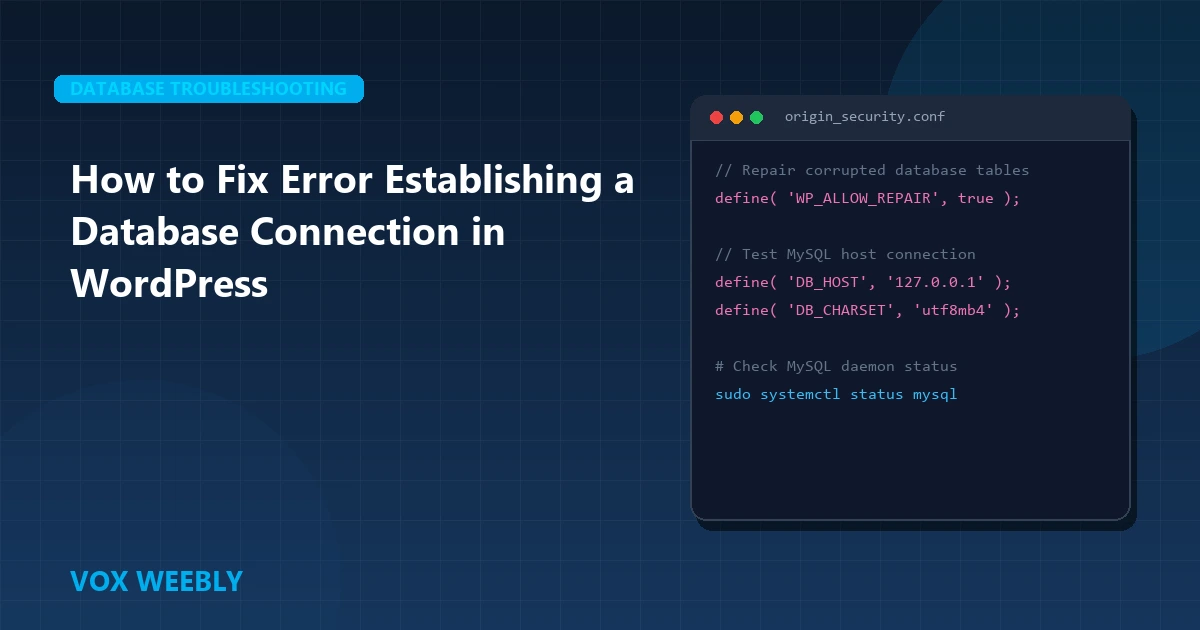
To repair your tables automatically, open wp-config.php via SFTP or SSH and add the following line just above /* That's all, stop editing! Happy publishing. */:
define( 'WP_ALLOW_REPAIR', true );Once saved, navigate to https://yourdomain.com/wp-admin/maint/repair.php in your browser. You will see two options:
- Repair Database: Quickly repairs damaged indexes across all tables.
- Repair and Optimize Database: Repairs tables and optimizes data storage overhead.
Click “Repair and Optimize Database”. Once the process completes with green checkmarks, immediately delete or comment out the define('WP_ALLOW_REPAIR', true); line from wp-config.php to prevent unauthorized users from triggering repairs.
Step 2: Verify Database Credentials in wp-config.php
Over 80% of database connection issues stem from mismatched database constants. Inspect your wp-config.php located in your web root:
// ** Database settings - Verify these with your host panel ** //
define( 'DB_NAME', 'vox_production_db' );
define( 'DB_USER', 'vox_db_user' );
define( 'DB_PASSWORD', 'YourSuperSecretPassword123!' );
define( 'DB_HOST', 'localhost' );
define( 'DB_CHARSET', 'utf8mb4' );
define( 'DB_COLLATE', '' );
Cross-reference each parameter with your hosting control panel (cPanel MySQL Databases, DirectAdmin, or Hostinger hPanel). Specifically verify:
- Has the database user been added to the database?
- Has the database user been granted ALL PRIVILEGES?
- Does your database user have host prefixing (e.g.,
u123456_userinstead of bareuser)?
Step 3: Test MySQL Connectivity with a Standalone PHP Script
To definitively isolate whether the problem is inside WordPress or on the web server itself, create a standalone test script named db-check.php in your root directory:
<?php
$host = 'localhost';
$user = 'vox_db_user';
$pass = 'YourSuperSecretPassword123!';
$db   = 'vox_production_db';

$conn = new mysqli( $host, $user, $pass, $db );

if ( $conn->connect_error ) {
    die( '<h3 style="color:red;">MySQL Connection Failed: ' . $conn->connect_error . '</h3>' );
}
echo '<h3 style="color:green;">Successfully Connected to MySQL Database!</h3>';
$conn->close();
?>
Load https://yourdomain.com/db-check.php. If you get a green success banner, your MySQL daemon is healthy and your credentials are correct—the issue may be table prefix mismatching in wp-config.php (check $table_prefix). If connection fails, your MySQL daemon is either crashed or denying access.
Always delete db-check.php immediately after testing.
Step 4: Restart and Optimize the MySQL / MariaDB Daemon
If you manage a VPS or dedicated server, check the service status via SSH terminal:
# Check MySQL daemon status
sudo systemctl status mysql
# Or for MariaDB:
sudo systemctl status mariadb

# If inactive, restart the service:
sudo systemctl restart mysql

# Verify error log for out-of-memory (OOM) killer terminations:
sudo tail -n 50 /var/log/mysql/error.log
If the error log reveals Out of memory: Kill process (mysqld), your server ran out of RAM. Mitigate this by allocating swap space and preventing un-cached dynamic request storms with our guide on Core Web Vitals and edge caching tactics.
Step 5: Resolve Socket and Host Binding Conflicts
Certain hosting architectures do not route localhost through standard Unix sockets. Try updating the DB_HOST definition in wp-config.php:
define( 'DB_HOST', '127.0.0.1' );— Forces a direct TCP/IP connection rather than Unix socket.define( 'DB_HOST', '127.0.0.1:3306' );— Explicitly sets the default MySQL port.define( 'DB_HOST', 'localhost:/tmp/mysql.sock' );— Explicitly declares the socket path for custom cPanel environments.
Preventing Future Database Outages: The Reliability Checklist
- Implement Cloudflare Full Page Caching: Offload 85%+ of read requests to Cloudflare edge nodes, drastically reducing origin MySQL queries.
- Regular Database Index Maintenance: Clean transient options, spam comment revisions, and orphaned postmeta monthly using WP-CLI (
wp db optimize). - Strengthen Origin Security: Ensure automated bots cannot flood your origin with unauthenticated requests. Review our step-by-step tutorial on adding HTTP security headers in WordPress.
Frequently Asked Questions (FAQ)
Why does my site work sometimes and show database errors at other times?
Intermittent database errors indicate server resource exhaustion. During traffic spikes, MySQL exceeds its maximum connection limit (max_connections) or server memory runs out, causing the OS to throttle connections temporarily.
Will repairing the database delete my content?
No. The native WordPress repair tool (repair.php) only reconstructs corrupt indexes and cleans up broken rows; it does not delete published posts, pages, or media attachments.
How do I know my correct table prefix?
Log in to phpMyAdmin through your hosting panel and look at the table names on the left. If they begin with wp_, set $table_prefix = 'wp_'; in wp-config.php. If they use a custom prefix like wpx7_, update the variable accordingly.
Advanced MariaDB & MySQL Query Diagnostics
When high concurrency overwhelms database worker pools, unindexed queries on large tables (like wp_postmeta and wp_options) cause connection starvation. Use the MySQL slow query log to identify bottleneck queries:
-- Inspect active long-running database threads
SHOW FULL PROCESSLIST;

-- Optimize core tables to rebuild damaged indexes
OPTIMIZE TABLE wp_posts, wp_postmeta, wp_options, wp_comments;
For official server documentation on database tuning, refer to the MySQL Server Administration Reference Manual.