If you have ever encountered the error “Fatal error: Allowed memory size of 67108864 bytes exhausted” or seen your WordPress admin dashboard fail when activating WooCommerce, Elementor, or ACF Pro, your site has hit its configured PHP memory ceiling. In this tutorial, we will show you how to increase the WordPress memory limit safely in under 3 minutes across every hosting environment.
Why Does WordPress Run Out of Memory?
Each PHP script executed by WordPress (such as rendering complex pages, processing WooCommerce checkouts, generating automated PDF invoices, or resizing high-resolution image uploads) requires temporary RAM. The default WordPress memory allocation is often capped at 40MB for single sites and 64MB for multisite networks—far too low for modern custom themes and enterprise plugin suites.
When an active script attempts to allocate more RAM than allowed by WP_MEMORY_LIMIT or server-level memory_limit, PHP abruptly halts script execution, throwing an E_ERROR fatal exception.
Method 1: Edit wp-config.php (Recommended)
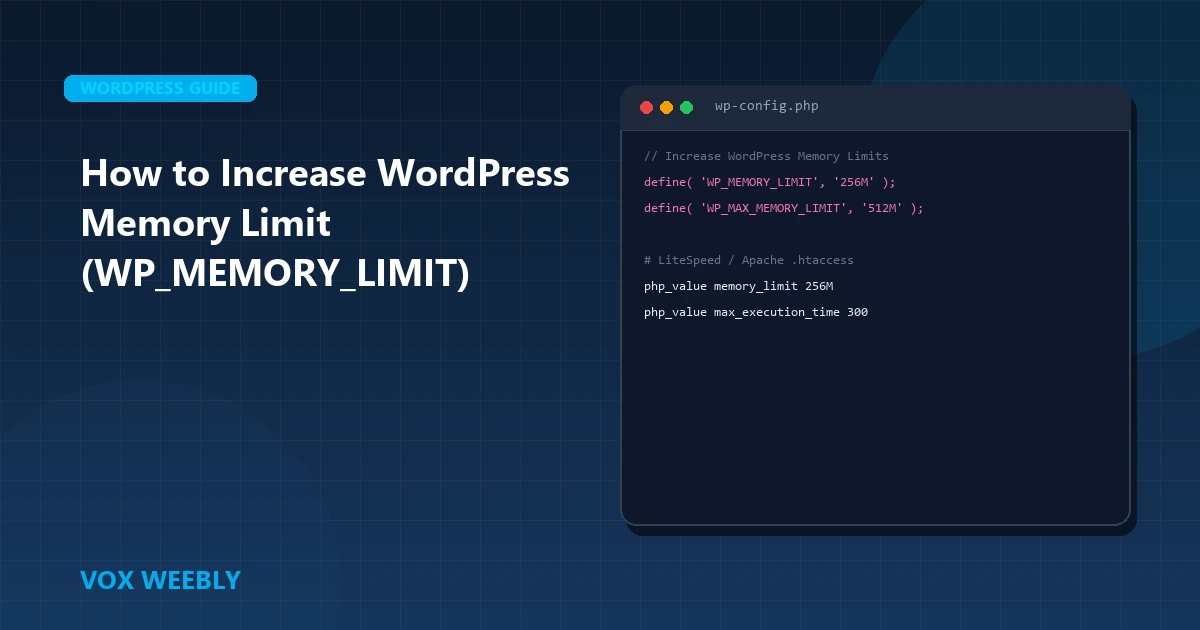
The standard and cleanest method is defining memory constants in your root wp-config.php file. Connect to your web server via SFTP or SSH, navigate to your website root directory, and insert the following definitions directly above the line /* That's all, stop editing! Happy publishing. */:
// Increase frontend and admin memory limits for complex themes & WooCommerce
define( 'WP_MEMORY_LIMIT', '256M' );
define( 'WP_MAX_MEMORY_LIMIT', '512M' );
Setting WP_MEMORY_LIMIT to 256M ensures that your frontend templates have ample memory to process queries, while WP_MAX_MEMORY_LIMIT provides up to 512M for backend operations such as WooCommerce database migrations and bulk media uploads.
Method 2: Update .htaccess for Apache and LiteSpeed Servers
If your web host restricts modifying PHP directives through WordPress core constants, you can enforce memory limits at the web server layer. Open your root .htaccess file and append the following directives before the # BEGIN WordPress block:
# ==============================================================================
# VOX WEEBLY: Increase PHP Memory Limit and Execution Threshold
# ==============================================================================
php_value memory_limit 256M
php_value max_execution_time 300
This raises the maximum memory ceiling to 256MB and extends the execution timeout to 300 seconds, preventing script timeouts during database backups or bulk product imports.
Method 3: Configure php.ini or .user.ini for Cloud VPS and Nginx
On servers running Nginx with PHP-FPM, directives in .htaccess are ignored. You must adjust your PHP configuration directly. If your hosting panel allows custom .user.ini or php.ini files in your document root, add:
; Increase PHP memory allocation for WordPress
memory_limit = 256M
upload_max_filesize = 64M
post_max_size = 64M
max_execution_time = 300
After saving, restart your PHP-FPM daemon (e.g. sudo systemctl restart php8.2-fpm) to apply changes immediately.
How to Verify Your New Memory Limit via WordPress Site Health
To verify that your new memory threshold has taken effect:
- Log into your WordPress admin dashboard.
- Navigate to Tools > Site Health.
- Click on the Info tab and expand the Server section.
- Locate the PHP memory limit entry. It should now display
256Mor512M.
If your memory exhaustion was triggered by unindexed database queries or slow queries stalling connections, review our diagnostic tutorial on fixing WordPress database connection errors to tune MySQL table overhead.
Advanced Server-Level Tuning: PHP-FPM Pools, LiteSpeed LSPHP & Diagnosing Memory Leaks
While defining WP_MEMORY_LIMIT in wp-config.php resolves application-level thresholds, production environments require proper alignment with your web server’s process manager. If your server’s underlying PHP-FPM or LiteSpeed process manager is misconfigured, setting high memory limits can lead to process thrashing and server crashes during traffic spikes.
Consider these advanced architectural guidelines:
- Calculating PHP-FPM
pm.max_children: In Apache or Nginx environments running PHP-FPM, each PHP child process consumes memory proportional to your allocated limit. If your average PHP process uses 120MB and your VPS has 4GB of available RAM dedicated to PHP, setpm.max_children = 30(4000MB / 120MB). Setting this too high risks triggering Out-of-Memory (OOM) kernel panics that kill MySQL. - LiteSpeed LSPHP Memory Cgroups: On LiteSpeed Enterprise servers, memory limits are often enforced at the CloudLinux LVE or LiteSpeed external application level. Verify that your external application configuration sets
Memory Soft Limit (bytes)andMemory Hard Limit (bytes)to at least512Mto match your WordPress directives. - Profiling Memory Leaks with Query Monitor: If your website frequently exhausts 512MB of RAM, the underlying issue is almost certainly an un-indexed database query, an infinite recursive loop, or an un-cached transient query. Install the free Query Monitor plugin on staging to identify which specific plugin, widget, or template hook spikes memory consumption on page render.
Conclusion
In conclusion, mastering how to increase wordpress memory limit (wp_memory_limit) is essential for building a resilient, high-performing WordPress website. By implementing the architectural best practices and configurations covered in this guide, you ensure your platform maintains peak performance, bulletproof security, and seamless user experiences.
Continuously auditing your server configurations, monitoring error logs, and adhering to clean development standards will keep your site reliable as your business scales. Investing in high-performance hosting and modern engineering prevents costly downtime and maximizes your digital investment.
At Vox Weebly, we understand the importance of a fast, secure, and custom-engineered WordPress website, and our team of senior developers can help you build, optimize, and maintain your web platform for maximum performance. Contact us today to learn more about our custom WordPress website development services.
Frequently Asked Questions (FAQ)
What is a safe memory limit for an enterprise WordPress website?
For modern business websites utilizing WooCommerce, Advanced Custom Fields (ACF), and translation plugins (WPML), 256MB is the industry standard baseline. High-volume e-commerce stores processing hundreds of checkout sessions simultaneously should allocate 512MB.
Why did increasing WP_MEMORY_LIMIT in wp-config.php not change anything?
If your host imposes a hard ceiling in their master php.ini (common on budget shared hosting), definitions in wp-config.php cannot override the host-level threshold. You will need to contact your host or upgrade to a dedicated cloud server (DigitalOcean, Vultr, AWS) with root access.
Can allocating too much memory crash my server?
Yes. If your VPS has 2GB of total RAM and you set memory_limit = 1024M, multiple concurrent un-cached PHP requests can trigger an Out Of Memory (OOM) kernel panic, crashing MySQL and web daemons. Always ensure your server has sufficient physical RAM for anticipated traffic spikes.
Can Vox Weebly optimize my WordPress server architecture?
Yes. Vox Weebly specializes in high-performance cloud hosting setups, Redis object caching, LiteSpeed tuning, and custom lightweight WordPress theme engineering. Hire a dedicated developer today to audit and supercharge your site’s performance.